How to Add Gift Wrap to Shopify Product Page (The Easy Way)
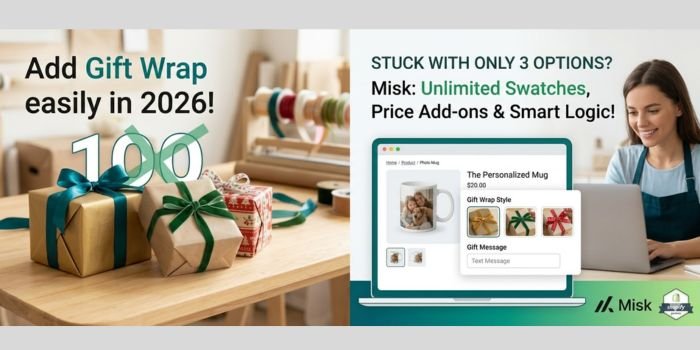
Offering a gift wrap option is one of the easiest ways to improve the shopping experience for your customers. Whether it’s for a birthday, a holiday, or a “just because” gift, a professionally wrapped package makes the delivery more memorable and increases customer satisfaction.
Instead of messing with complicated code or creating “fake” products in your inventory, the most efficient way to do this in 2026 is by using Misk Smart Product Options.
Why Use Misk for Gift Wrapping?
Misk Smart Product Options is a powerful, human-friendly app designed to break Shopify’s standard limits. While Shopify usually limits you to just 3 options, Misk allows you to add infinite customizations to your products.
- Unlimited Styles: Offer as many wrapping papers, ribbons, and box types as you want.
- Visual Swatches: Let customers see exactly what the wrapping looks like with high-quality images.
- Smart Logic: Only show the “Gift Message” text box if the customer actually selects the gift wrap option.
- Automated Pricing: Easily add extra fees (e.g., +$5.00) that update the total price instantly.
Step 1: Create a Gift Wrap Option Set
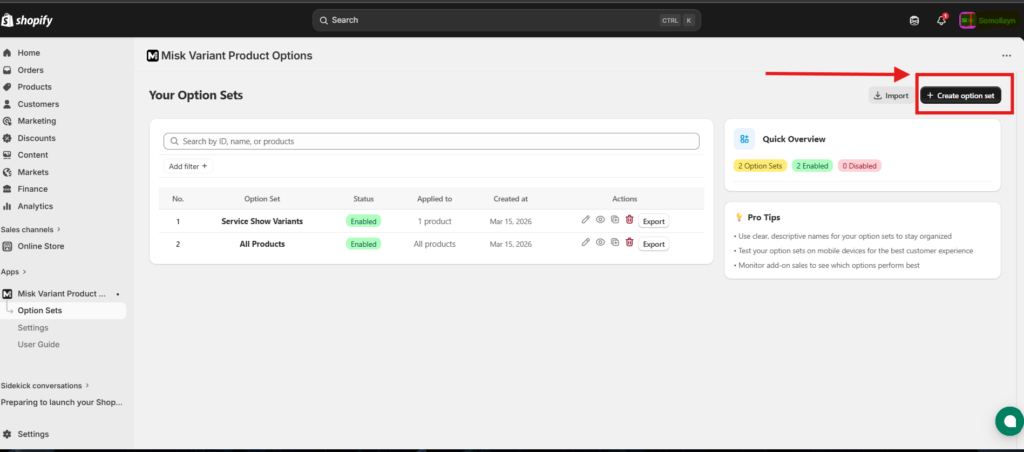
First, open Misk Smart Product Options from your Shopify admin.
Navigate to the Option Sets tab and click Create New Set.
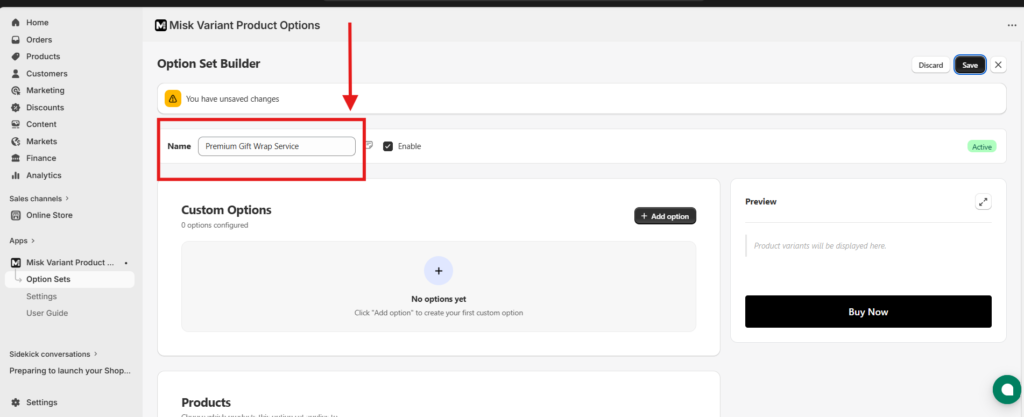
Give it a clear name like “Premium Gift Wrap Service.” This helps you keep things organized if you plan to create different options for different collections later.
Step 2: Choose Your Option Types
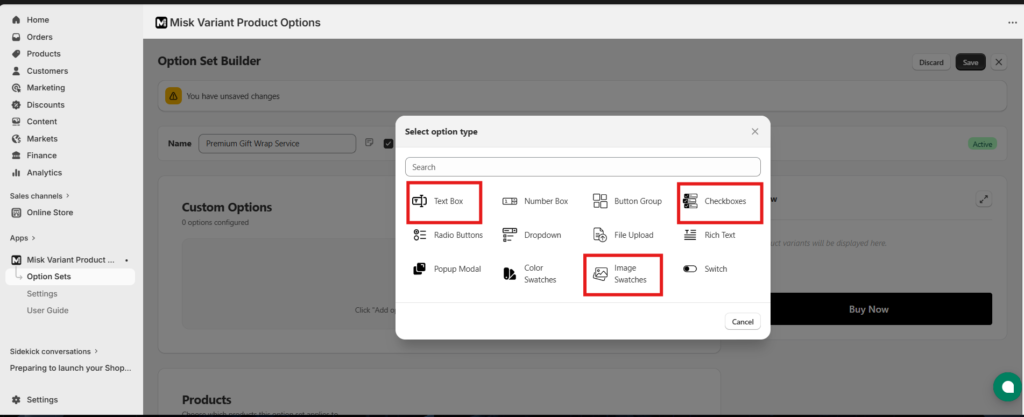
Misk gives you several ways to display your gift wrap. Depending on your brand style, you can choose:
- Image Swatches: Best for showing different wrapping paper patterns (Standard, Deluxe, or Eco-friendly).
- Checkboxes: Great for a simple “Add Gift Wrap” toggle.
- Text Blocks: Perfect for letting customers type a personalized gift message to the recipient.
For a professional feel, we recommend using Image Swatches so the customer can visualize the final product.
Step 3: Set Prices and Tooltips
In the Option Values section, you can add your different wrapping tiers.
- Click Add New Value to list your choices (e.g., “Holiday Red,” “Midnight Blue,” or “Recycled Kraft”).
- Enable Additional Costs to assign a price to each. For example, you can offer “Standard” for free and “Premium” for $7.00.
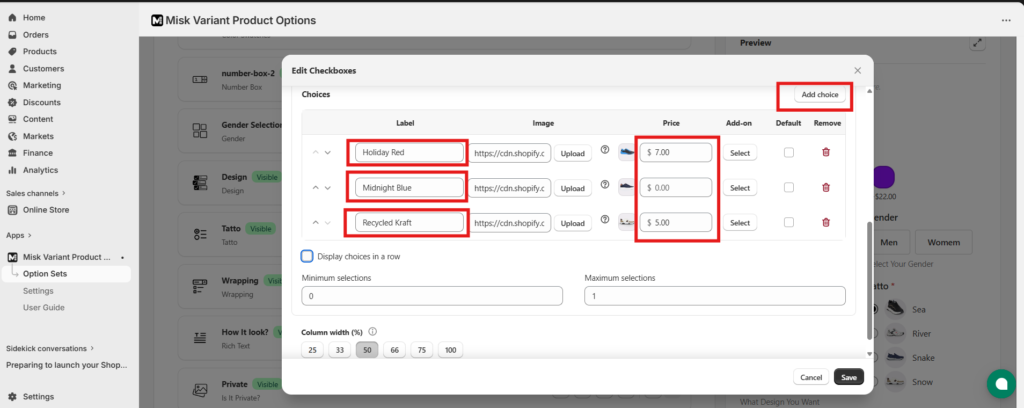
- Add a Tooltip Description. This allows you to explain exactly what’s included (like a hand-written card or a silk ribbon) when the customer hovers over the option.
Step 4: Bulk Assign to Your Products
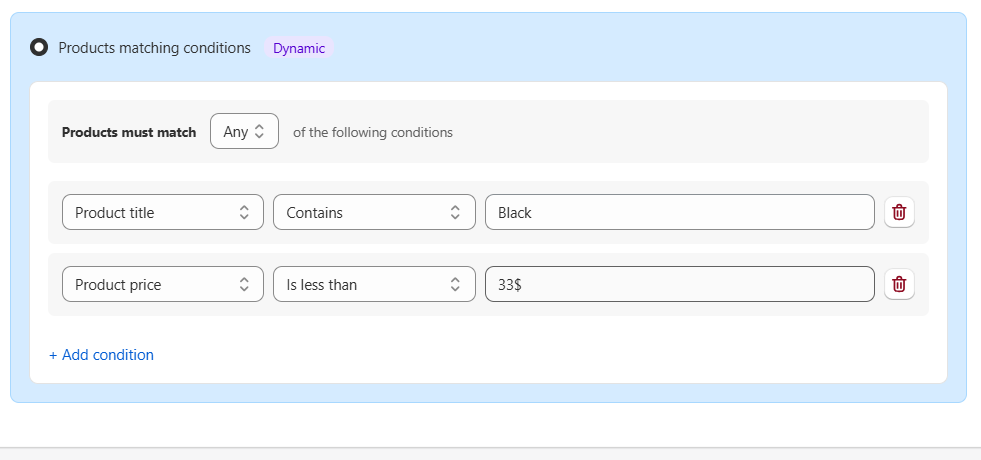
You don’t have to add this manually to every single product. In the Products tab of the Misk app, you can:
- Filter by Product Type or Collection.
- Select all relevant items with one click.
- Hit Save to instantly apply the gift wrap options to your entire store or specific categories.
The Final Result: A Seamless Experience
Once you hit save, your customers will see a beautifully integrated gift wrap section on your product pages.
Because Misk uses Dynamic Logic, the page stays clean. If a customer wants a gift, they click the option, the swatches appear, and the “Gift Message” box pops up only when needed.
By using Misk Smart Product Options, you aren’t just adding a checkbox you’re adding a premium service that helps your brand stand out in a crowded market.
About Author

- Muhammad Saif is an experienced SEO content and news writer with 4 years of expertise in creating engaging, optimized content. Skilled in keyword research, SEO strategy, and crafting timely news articles, Muhammad Saif helps brands boost visibility and connect with audiences. Known for simplifying complex topics, Muhammad Saif delivers impactful content that informs and inspires.